How to Connect System Platform to an MQTT Broker
We explain how to connect System Platform to an MQTT broker using the HiveMQ broker and easily connecting clients to the broker.


In the IoT era, the MQTT protocol is becoming increasingly widespread in industrial architectures. In previous versions, MQTT integration could be found through the OI-Gateway driver. However, with the recent release of version 2020 of System Platform and the driver package update, the new MQTT OI Server driver has been released.
In this post, I would like to show you how to connect System Platform to a public MQTT broker. I have chosen to use the HiveMQ broker. This allows you to easily connect clients to the broker and thus retrieve their data in System Platform.
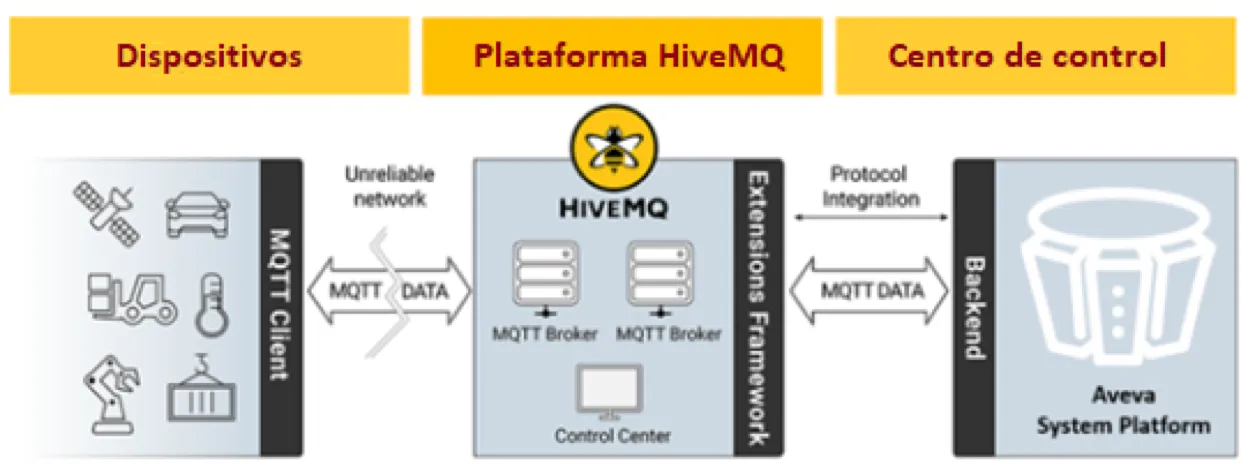
HiveMQ offers a web client interface that allows you to verify the successful reception of messages in the broker. A very useful tool to validate the communication chain. I leave you here the link so you can access it:
HiveMQ
Another open source broker that you can use is Mosquitto.

In order to simplify the exercise, I have installed an IoT OnOff application on my iPhone. This application allows you to connect a SmartPhone to an MQTT broker, publish data and visualize on your SmartPhone the data to which you have subscribed. I leave you the links below so you can download it:
 As you can see, I have used an “Edge” application, which is not Wonderware as part of the demonstration, but with InTouch Edge, for example, I could achieve the same objective by combining local supervision with a centralized control system as we will do with System Platform. In this link I leave you a link to the webinar on data publication from Intouch Edge to an MQTT broker:
Webinar
Finally, to quickly advance in the configuration of the demonstration platform, I have used our Integration Studio solution. So, in a few minutes, I had a fully configured machine in the 202020 version accessible in the cloud. Integration Studio offers a very significant time saving in the creation of a machine installed with all the software.
I recommend that you discover or rediscover Integration Studio in our range of development tools in the cloud!
I MQTT OI-Server Driver Configuration
The driver is configured in just a few clicks. First of all, an MQTT communication interface is created through SMC.

Now it remains to configure the controller indicating the address of the Broker. In our case, we will use the HiveMQ Broker hosted at the following address: broker.hivemq.com. The port to configure is 1883. We have also changed the name of the connection to MQTT_HIVEMQ.

Next, it is necessary to create an MQTT group that we will call Machine01. The name can be customized to correspond to your installation.
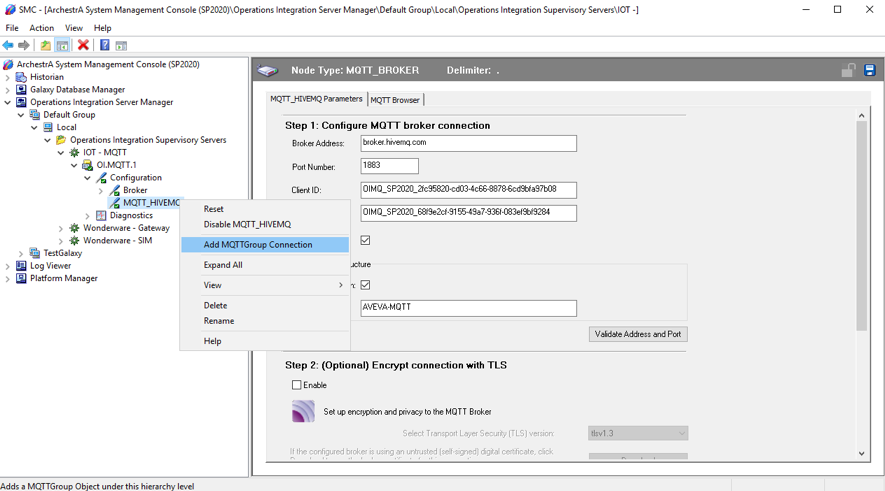
The MQTT OI-Server is now configured. It is necessary to verify that the connection with the broker is well established and we can now move on to the configuration of the communication with System Platform. I take advantage of this example to explain that the MQTT OI-Server has native Store & Forward support in case of losing communication with the broker.
I Configure System Platform
Now that the data is present in the MQTT OI-Server, we need to connect System Platform to the MQTT OI-Server through the SuiteLink protocol. We are going to create in System Platform a team that we are going to call $MachineData with an attribute of type Integer that we will name Velocidad. Therefore, the speed of the machine will be sent from our SmartPhone through the IoT OnOff application. We will show this variable through a graph in InTouch OMI.
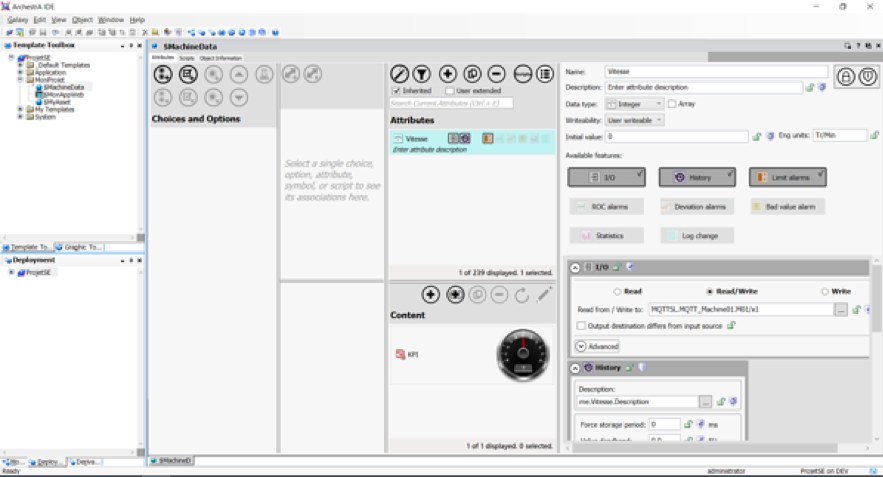
Now we will focus on the configuration of our communication controller on the System Platform side. Therefore, we will implement the SuiteLink communications object (DI Object). To ensure the connection with the MQTT OI-Server, we will create a topic named MQTT_HIVEMQ_Machine01.

To understand the connection between System Platform and the MQTT OI-Server, keep in mind that the MQTT_HIVEMQ_Machine01 syntax comes from the configuration performed in the MQTT OI-Server (see below).
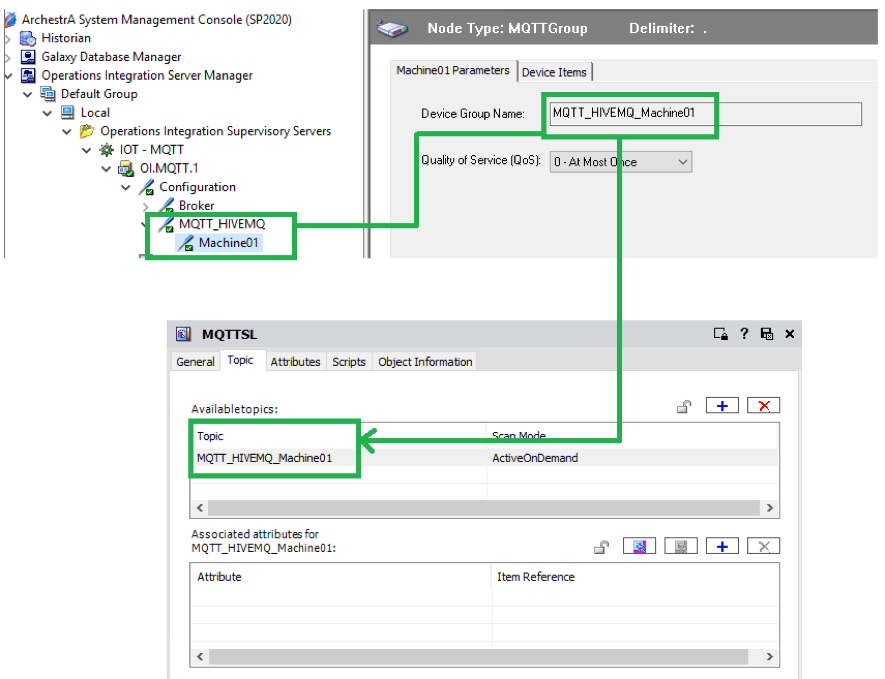
Now we will focus on the syntax of the IO attribute to address the speed variable.
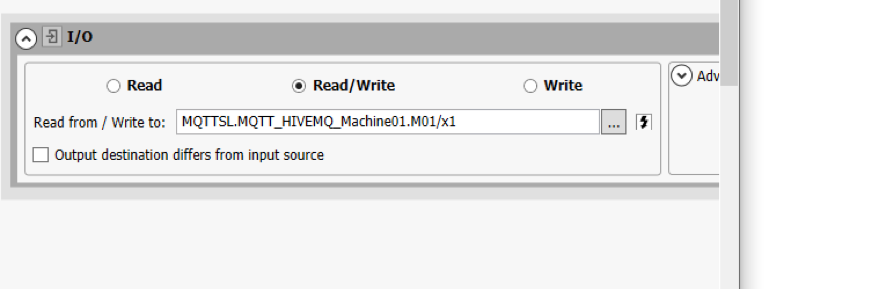
The syntax is, therefore, MQTTSL. MQTT_HIVEMQ_Machine01.M01/x1.
The composition is as follows:
MQTTSL = the name of the SuiteLink instance in System Platform
MQTT_HIVEMQ_Machine01 = the name of the topic that allows to make the link with the communication group declared in the MQTT OI Server.
M01/x1 = the name of the equipment and the variable sent from the SmartPhone (or field equipment).
Finally, now that everything is connected, below, I leave you a simplified view in InTouch OMI with historical and real-time data, as well as in Historian InSight. On the right, you will see the view of the IoT OnOff interface.

I hope this post has been useful and allows you to better understand how Wonderware System Platform offers you a convergent IT/OT platform, simple and quick to implement.